Watermark (Pro)
A watermark on the previews lets you show a whole shoot without handing out usable files. With Pro the plugin renders your logo onto every preview — the grid thumbnails and the lightbox image — while downloads keep streaming the untouched original.
That split is the point: the browser never sees a clean high-resolution file, and your client never receives a marked one.
What you’ll learn
Section titled “What you’ll learn”- Where the watermark applies and where it deliberately does not
- Which image to use and how to position it
- What happens to existing previews when you change the settings
- What your server needs for this to work
Prerequisites
Section titled “Prerequisites”- A Pro licence
- A logo file in the WordPress media library — a PNG with a transparent background works best
- Imagick or GD on your server (almost every host has one; the settings page says so if neither is available)
Step-by-step
Section titled “Step-by-step”Go to Customer Cloud Gallery → Settings → Design → Watermark on previews.
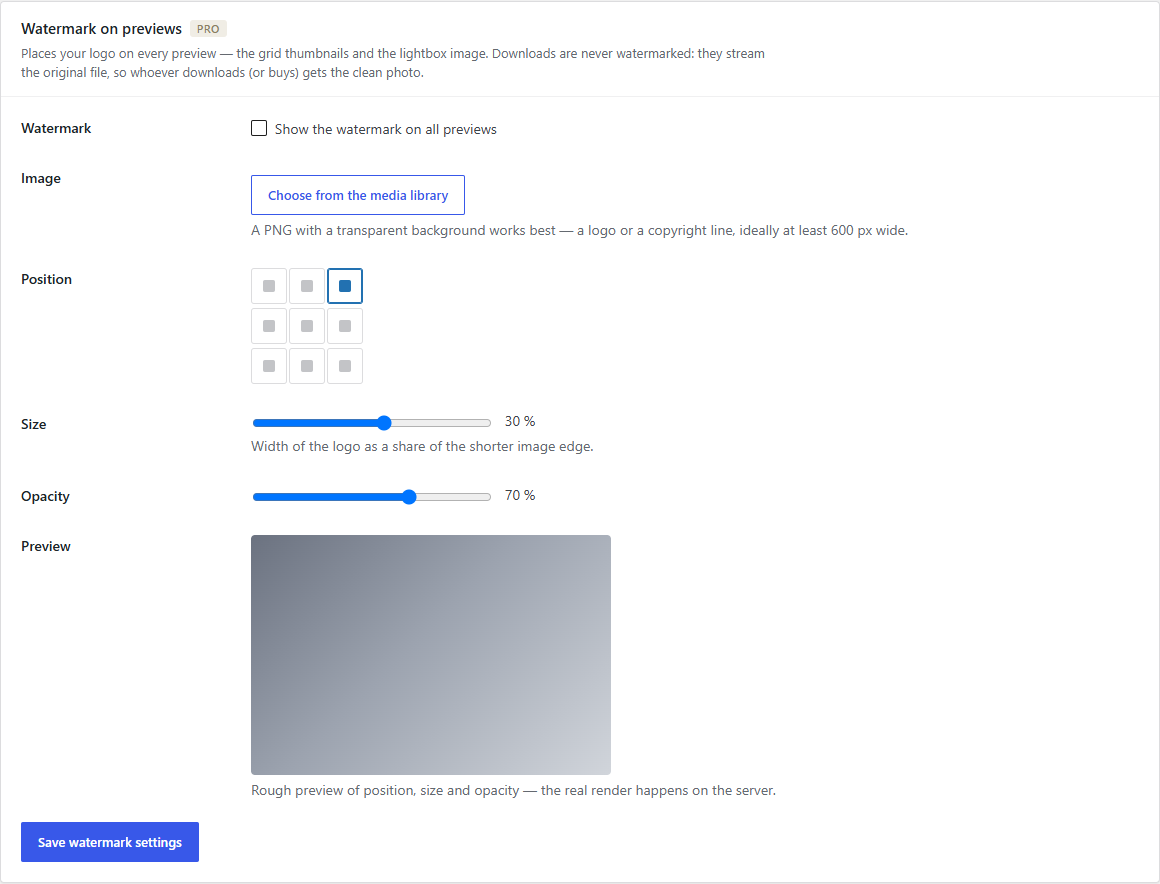
- Choose from the media library — pick your logo. Ideally at least 600 px wide, so it stays sharp on large previews. A copyright line works as well as a logo.
- Position — one of nine spots in the 3×3 grid. Bottom right is the least intrusive; centre is the hardest to crop out.
- Size — the width of the logo as a share of the shorter image edge, so it stays proportional on portrait and landscape alike.
- Opacity — how strongly it sits on the photo. Around 70 % is visible without dominating; below 40 % it stops being much of a deterrent.
- Tick Show the watermark on all previews and save.
The small preview next to the sliders is a rough guide to position, size and opacity. The real rendering happens on the server.
What is watermarked — and what isn’t
Section titled “What is watermarked — and what isn’t”| Where | Watermark |
|---|---|
| Grid thumbnails | yes |
| Lightbox image | yes |
| Single-image download | no — the original file |
| ZIP download (all, selection, favourites) | no — the original files |
| Print orders (Pro) | no — the original file |
So whoever downloads or buys always gets the clean photo. Nothing you deliver carries the mark.
Changing or removing it
Section titled “Changing or removing it”The watermark is baked into the cached preview, not applied on the fly, so the settings are part of the cache fingerprint: change the image, position, size or opacity and previews are simply rebuilt the next time they are viewed. The first visitor after a change waits a moment longer; nobody has to clear anything by hand.
Switching the watermark off works the same way — the next view shows the clean preview again.
Common mistakes
Section titled “Common mistakes”The watermark is invisible on bright photos. A white logo on a white dress disappears. Use a logo with a soft shadow or an outline, or raise the opacity.
It looks pixelated on large previews. The source image is too small. Replace it with one at least 600 px wide — the plugin scales down cleanly, not up.
Nothing happens after saving. The previews you are looking at are already cached and are rebuilt on their next view. Reload the gallery once, and check that Show the watermark on all previews is actually ticked.
The settings page says the watermark cannot be rendered. Your server has neither Imagick nor GD. That is a hosting setting — ask your host to enable one of the two PHP image extensions.
Next step
Section titled “Next step”Control who sees the gallery at all: Password protection. Or sell the clean files as prints: Print shop setup.