Layouts and look (Pro)
Every gallery starts as justified rows, the classic delivery layout. With Pro you can give each gallery its own look instead — a different grid, tighter or looser spacing, softer corners, captions, and a lightbox that matches your site.
All of it is set per gallery, in Gallery configuration in the gallery editor. Nothing here changes your photos; it only changes how they are arranged.
What you’ll learn
Section titled “What you’ll learn”- What the four layouts look like and when each one fits
- How spacing and corner radius change the character of a grid
- Hover effect, captions and lightbox options
- Which setting controls the number of columns (it isn’t a column setting)
Prerequisites
Section titled “Prerequisites”- A Pro licence
- At least one gallery (see Your first gallery)
The settings
Section titled “The settings”
The four layouts
Section titled “The four layouts”Justified rows
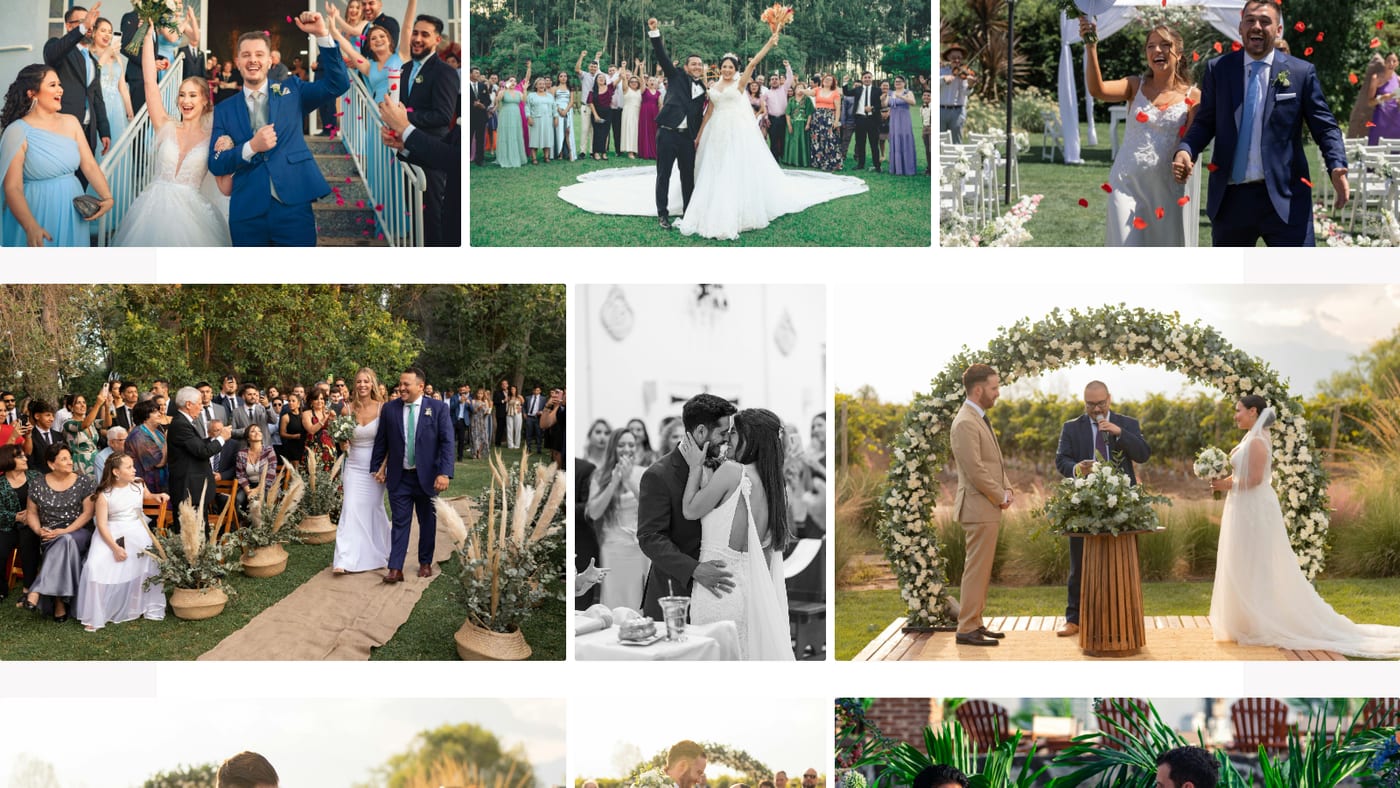
Section titled “Justified rows”The default, and the safest choice for a client gallery. Images keep their aspect ratio and every row is filled to the full width, so portrait and landscape shots sit together without cropping.
Masonry
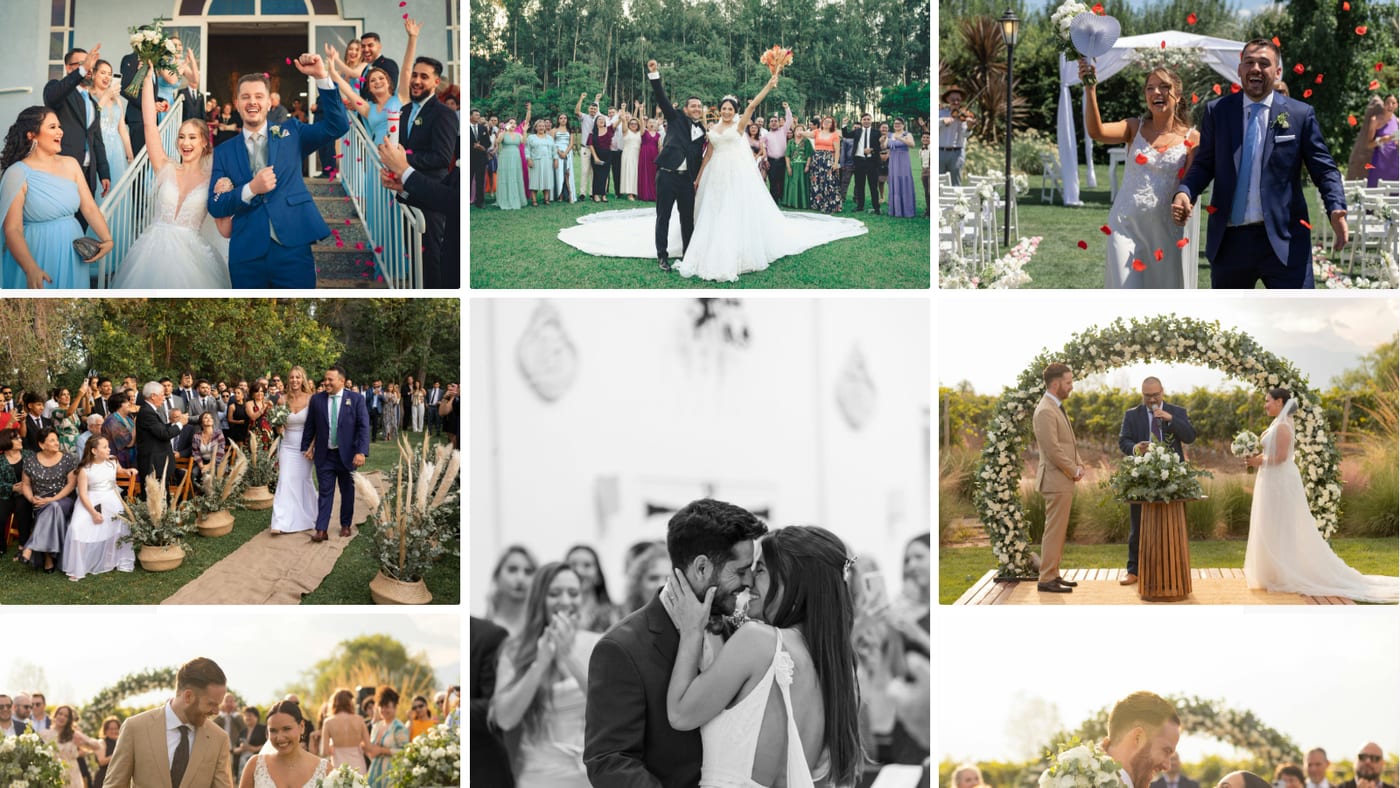
Section titled “Masonry”Equal column width, natural heights — a pinboard. Good when your set is mostly portrait, or when you want a looser, editorial feel.
Square grid
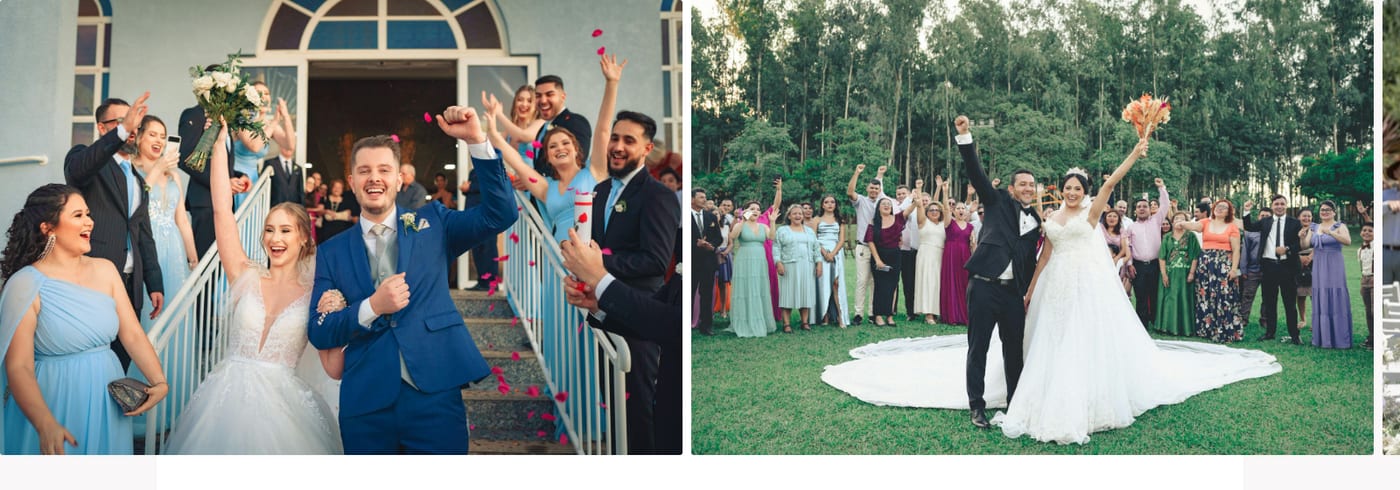
Section titled “Square grid”Equal square tiles; images are cropped to fit. The most orderly of the four, and the one that makes a mixed set look deliberate. Use it when the composition survives a centre crop — it will not be kind to tight portraits.

Filmstrip
Section titled “Filmstrip”One row that scrolls sideways. Made for a highlight reel on a landing page rather than a full delivery — a handful of images, not four hundred.
Spacing and corners
Section titled “Spacing and corners”- Spacing — the gap between images, 0–40 px. 0 px gives a seamless mosaic, which suits the square grid especially well. 10 px is the default and reads as a normal gallery.
- Corner radius — 0–24 px. 0 is sharp and editorial; 3 px (the default) is barely noticeable but takes the hard edge off; anything above 12 px starts to look like an app.
Hover, captions, lightbox
Section titled “Hover, captions, lightbox”- Hover effect — zoom in slightly with a soft shade, darken the image, or no effect. On a touch screen there is no hover, so this only affects visitors on a mouse.
- Captions — no captions, file name on hover, or file name always visible. The caption is the file name without its extension, with underscores and dashes turned into spaces. So
Anna-und-Tom_First-Look.jpgreads as “Anna und Tom First Look” — name your files the way the caption should read, or leave captions off. - Lightbox — dark (the default) or light, and optionally a thumbnail strip along the bottom for quick navigation. The strip helps in a long gallery and gets in the way in a short one.
Where the columns come from
Section titled “Where the columns come from”There is no column setting, on purpose. The number of columns follows from Grid image size in the same panel:
| Layout | What grid image size controls |
|---|---|
| Justified rows, filmstrip | the row height |
| Masonry, square grid | the column width |
Bigger images mean fewer per row, and the grid adapts to the window width on its own — which is why a fixed column count would fight the responsive layout rather than help it. More on the reasoning in the FAQ.
The lightbox is unaffected: it always shows the whole image, whatever the grid does.
Common mistakes
Section titled “Common mistakes”The square grid cuts off heads. Square tiles crop from the centre. Either switch to masonry or justified rows, or reserve the square grid for sets with room around the subject.
Captions read like file names. Because they are file names. Rename the files in the cloud folder before you point a gallery at them, or set captions back to no captions.
The filmstrip shows only a few photos. That’s what it is — one row. For a full delivery gallery use one of the other three.
Nothing changed on the page. Layout settings are per gallery, not per page. Make sure you saved the gallery, and reload the page once — thumbnails are cached.
Next step
Section titled “Next step”Give the gallery a cover photo: Title image. Or split a long shoot into sections: Chapters.