Print shop setup
This page walks you through configuring the integrated print-order shop. The shop runs entirely on email + manual payment (PayPal.me or SEPA), so the plugin stays PCI-DSS-free and you never need a payment-processor account. Aimed at Pro users who want to monetise galleries without a third-party print partner. This is a Pro-only feature.
What you’ll learn
Section titled “What you’ll learn”- How to enable the print shop and add it to a gallery
- How to define print formats and paper variants with their prices
- How to set shipping costs and a free-shipping threshold
- How to choose between PayPal.me, PayPal Standard (email) and SEPA bank transfer
- How order management and the automated emails work
Prerequisites
Section titled “Prerequisites”- A Pro license (free version doesn’t render
[ccgal_print]) - At least one published gallery (see Your first gallery)
- A PayPal.me link or PayPal account email or an IBAN you want orders paid into
Tutorial video
Section titled “Tutorial video”Video coming soon.
Step-by-step
Section titled “Step-by-step”1. Open the print options page
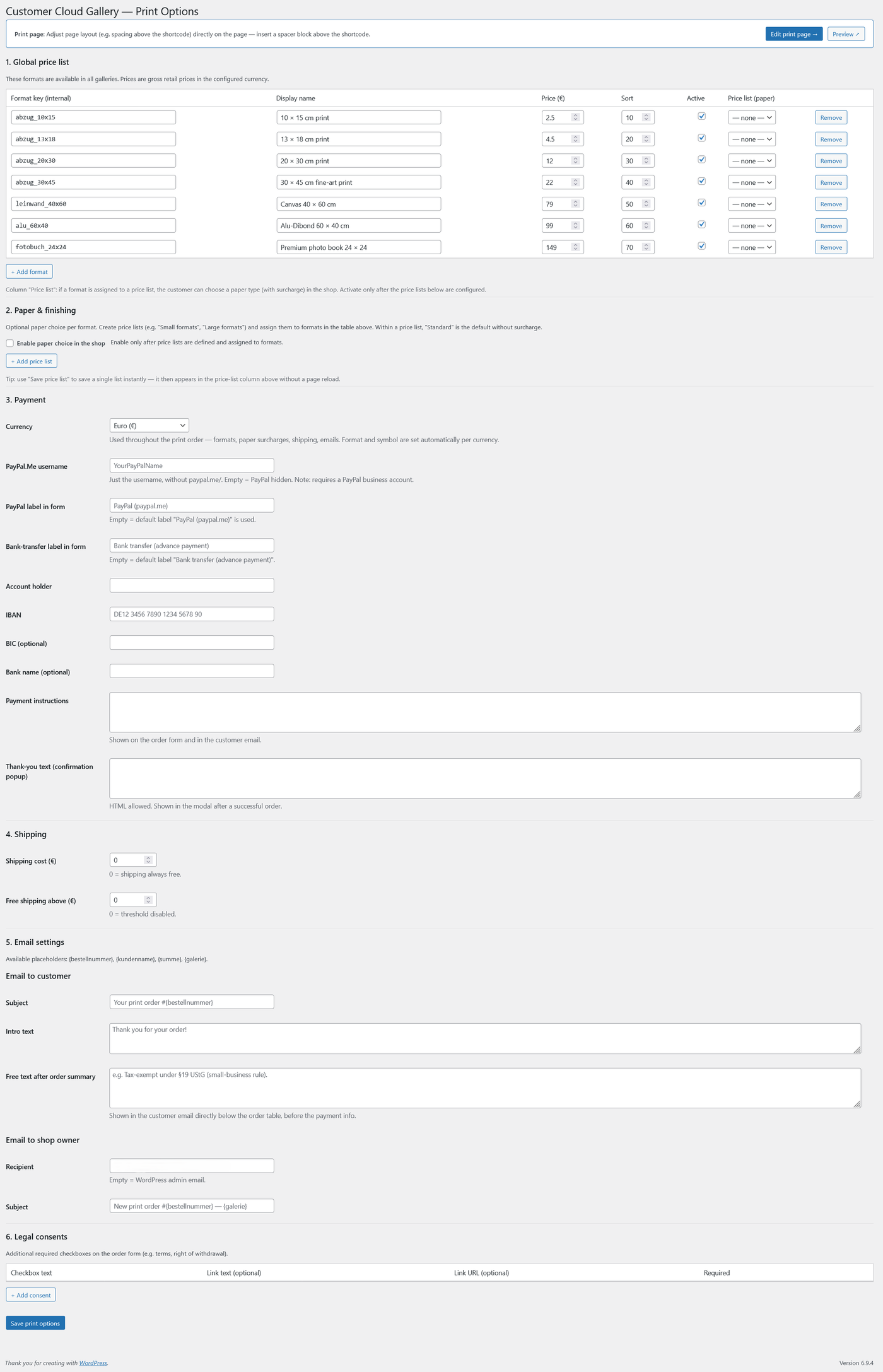
Section titled “1. Open the print options page”Go to Customer Cloud Gallery → Print options. There is no global on/off switch — the print shop is enabled per gallery (Step 7). What you do here is configure the catalogue: formats, paper variants, shipping, payment and emails. On first Pro activation the plugin auto-creates a hidden page that hosts the [ccgal_print] shortcode (or you can place that shortcode on a page you create manually).
2. Define print formats
Section titled “2. Define print formats”Each format row in the formats table has these fields:
- Key — internal slug, lowercase, no spaces (e.g.
13x18,a4). Unique identifier for the format. - Name — what the customer sees, e.g. “13x18 cm” or “A4”.
- Price — base price for this format in your shop currency (paper-list surcharges add on top).
- Sort order — position in the dropdown (lower = earlier).
- Active — uncheck to hide a format from customers without deleting the row.
- Paper list — which paper-variant list (Step 3) applies to this format. You can offer different paper options per size.
Common starter set: 10x15, 13x18, 20x30, 30x45, A4. The shop displays formats in sort order; inactive rows are hidden from the public form.
3. Define paper variants
Section titled “3. Define paper variants”Variants are applied across all formats — typical examples:
- Matt
- Glossy
- Fine art (premium)
You set a base price per format and the variant adds an absolute or percentage surcharge. The plugin renders a price grid (formats × variants) so customers see the total inclusive of paper choice.
Optional add-on variants you might define:
- Framed (vs. unframed)
- Mounted on aluminium
4. Set shipping cost and free-shipping threshold
Section titled “4. Set shipping cost and free-shipping threshold”Two fields on the Print options page:
- Shipping cost — flat rate added to every order, in your shop currency.
- Free-shipping threshold — orders at or above this subtotal get free shipping (the plugin auto-zeros the line). Set to 0 to disable free shipping.
5. Choose payment method
Section titled “5. Choose payment method”The plugin supports two payment methods, configured under Print options → Payment:
- PayPal — paste either a PayPal.me username (e.g.
yournameforpaypal.me/yourname) or a PayPal account email. The plugin auto-detects which mode applies on submit:- With a username, customers are sent to
paypal.me/yourname/<amount><currency>. PayPal.me cannot pass an order reference programmatically, so the order page asks the customer to type the order number into PayPal’s note field. - With an email, the plugin uses PayPal Standard “Buy Now” (
_xclick), which works with any PayPal account and does pass the order number to PayPal as the item description — sellers see “Order #1234” directly in the payment record. Recommended.
- With a username, customers are sent to
- SEPA bank transfer (advance payment) — paste your IBAN, BIC and account holder name. The customer sees them on the order confirmation and uses the order number as the transfer reference (
Verwendungszweck).
You can enable both — the customer picks one at checkout.
6. Configure the order-confirmation email templates
Section titled “6. Configure the order-confirmation email templates”Under Print options → Emails, you can edit:
- Customer confirmation — sent automatically when an order is placed. Includes the line items, total, and the chosen payment instructions.
- Admin notification — sent to the configured admin email address with the customer’s contact details and order summary.
Both templates use German-keyed placeholders that the plugin substitutes at send time:
{bestellnummer}— order number{kundenname}— customer’s full name{summe}— order total (formatted with currency){galerie}— title of the gallery the order came from
The placeholder names are German-keyed for historical reasons; the substituted values are plain text and work fine in any language email template.
If your host doesn’t deliver
wp_mail()reliably (very common on shared hosting), install an SMTP plugin such as WP Mail SMTP or FluentSMTP and route email through SendGrid, Mailgun or Brevo. Without it, customer confirmations may end up in spam or never arrive.
7. Enable the print shop on a specific gallery
Section titled “7. Enable the print shop on a specific gallery”Open the gallery in admin, scroll to the Print shop panel and tick Allow ordering for this gallery. From the visitor’s view, an Order prints button appears in the gallery toolbar; clicking it opens the print page with the visitor’s current selection.
8. Add a spacer block above the print shortcode
Section titled “8. Add a spacer block above the print shortcode”Same trick as for galleries: if your theme has a transparent header, add a Spacer block above the [ccgal_print] shortcode so the order form isn’t hidden behind the header. See Password protection for context.
9. Manage orders
Section titled “9. Manage orders”Go to Customer Cloud Gallery → Orders. Each row shows the order number, customer name, total and current status. The status flow is:
- New (
neu) — created when the customer submits the form. - In progress (
in_bearbeitung) — set manually once payment has arrived and you’re preparing the print order. - Shipped (
versendet) — set when you hand the prints to the post or carrier. - Completed (
erledigt) — final state once the customer has received the package. - Cancelled (
storniert) — alternate end-state if the order was cancelled or refunded.
Status changes can trigger emails (configurable). You can also export orders to CSV for bookkeeping.

Common mistakes
Section titled “Common mistakes”Customer paid via PayPal.me but I can’t tell which order it is. PayPal.me does not transfer the item description programmatically. The order-confirmation page tells the customer to enter the order number in PayPal’s note field, but customers occasionally skip this. Switch your PayPal field to an email to use PayPal Standard, which does pass the order number automatically.
Paypal.me link sends the customer to a USD payment page even though I’m pricing in EUR.
Older versions of the plugin built paypal.me/USERNAME/25.00 without a currency. Make sure you’re on 1.11.8 or newer — the link now appends the currency code (paypal.me/USERNAME/25.00EUR).
Customer confirmation email never arrives.
Almost always a wp_mail() delivery issue, not a plugin issue. Install an SMTP plugin and re-test. Check the recipient’s spam folder for the first attempt.
Next step
Section titled “Next step”Read the troubleshooting reference for things that go wrong in production: Troubleshooting.